
SAP PowerDesigner 16.6 SP3
In Brief, SAP PowerDesigner
SAP® PowerDesigner® is a graphical enterprise architecture and design solution supporting standard methodologies and notations.
It also allows reverse engineering and automatic code generation through customizable templates. PowerDesigner also offers a very powerful report generation feature, as well as a scalable enterprise repository solution with strong security and version control features that help manage multi-user development projects, and is also highly extensible.
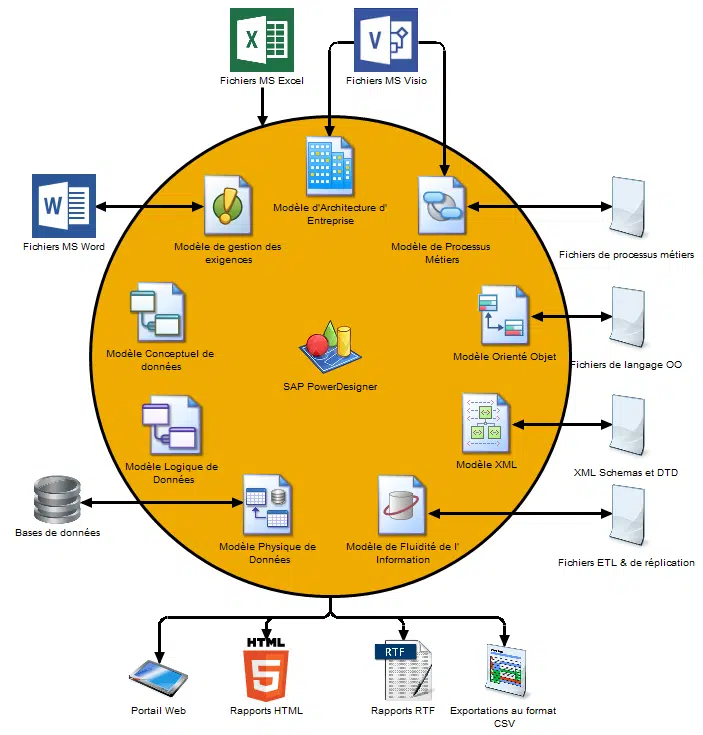
In summary, the general features specific to the solution are:
- Conceptual Data Model
- Logical Data Model
- Physical Data Model
- Information Flow Model
- XML Model
- Object-Oriented Model
- Business Process Model
- Enterprise Architecture Model
- Requirements Management Model
Creating Models and Projects
Models are the basic work unit in PowerDesigner and can contain one or more diagrams. Projects contain one or more models and can also include an architecture framework diagram or matrix to guide you in modeling your project:
-
To create a new model, select File > New Model.
-
To create a new model by importing an Excel, Word, ERwin, XMI, Rational Rose, or SIMUL8 file, select File > Import >.
-
To create a new model by reverse engineering a database, process or object languages, or an XML schema, select File > Reverse engineering >.
-
To create a new project, select File > New Project.
Configuring Your Modeling Environment
- To connect to the repository, select Repository > Connect.
- To set model options, including naming conventions for your objects, select Tools > Model Options.
- To control the appearance of symbols displayed in your diagrams and the information they show, select Tools > Display Preferences.
- To set general options for dialogs, editors, variables, etc., select Tools > General Options.
- To customize commands in your menus and tools in your toolbars, select Tools > Customize Menus and Tools.
The PowerDesigner Interface
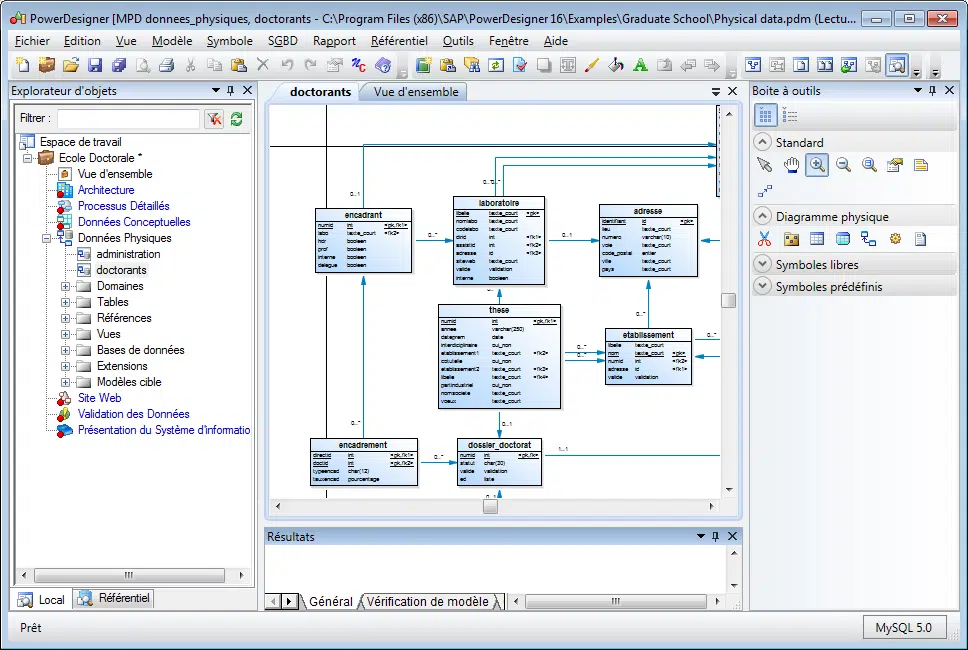
These tips are available in most models:
- To create an object in a diagram, select the appropriate tool from the Toolbox, then click in the diagram.
- To create an object in the Object Explorer, point to a model or package, right-click, then select New >.
- To open an object’s property sheet, double-click its entry in the Object Explorer or on its symbol in the diagram.
- To add a diagram to your model, point to the model node in the Object Explorer, right-click, and select New >.
- To find objects, select Edit > Find Object (or press Ctrl + F)
- To locate the Object Explorer entry corresponding to an object symbol, point to the symbol, right-click, then select Find in Object Explorer.
- To locate the diagram symbol for an object in the Object Explorer, point to its entry in the Object Explorer, right-click and select Find in Diagram.
- To check the validity of your model, select Tools >Check Model (or press F4).
- To add a new dependency matrix to your model, point to the model node in the Object Explorer, right-click, and select New > Dependency Matrix.
- To create a report on your model, select Report > Report Wizard (or press Ctrl + F12).
- To enable glossary use in your model, select Tools > Model Options, choose the Naming Conventions category, then check the Enable glossary for autocomplete and compliance checking box.
Linking and Synchronizing
These features help you create and review connections in your models and between your models:
- To create a link between an object and any other object, display an object’s properties, then click the Traceability Links tab.
- To generate a model from another model (when possible), select Tools > Generate Model >.
- To generate objects from one model in another, select Tools > Generate Objects > Define a New Object Generation.
- To create a shortcut to an object in another model or package, point to the target object in the Object Explorer (or on its symbol in a diagram), hold down the right mouse button and drag this object to the diagram where you want to create the replica (or to a model or package in the Object Explorer). Release the mouse button, and select Create Shortcut(s) here.
- To create a synchronized replica of an object in another model or package, point to the target object in the Object Explorer (or on its symbol in a diagram) and drag this object to the diagram where you want to create the replica (or to a model or package in the Object Explorer). Release the mouse button, and select Replicate here.
- To create or review mappings between two models (when possible), select Tools > Mapping Editor
- To compare two models, select Tools >Compare Models (or press Ctrl + F6).
- To merge two models, select Tools >Merge Models (or press Ctrl + F6).
- To analyze the impact of changing an object, select Tools >Impact and Lineage Analysis (or press Ctrl + F11).
Documentation
For detailed documentation, see General Feature Guide.